The Media list displays all of the media included in the selected campaign. It is important to remember that the initial campaign must be created (saved) in order for media to be added to the campaign.

Campaign Media List
Once the campaign has been created, media is selected by clicking the Add/Change Media button  on the Campaign Information tool bar. This opens the Select Media window where available media can be selected for inclusion in the campaign. The Select Media window can be used as often as needed to add or remove media from the campaign.
Each media in the Media list is displayed showing the type of media, the media's rep, status, proposal/order version number, the dates of the media's schedule, total number of ads, and broadcast and grand total amounts of the schedule.
The schedule for each individual media can be accessed by first highlighting it in the Media list, then clicking the Edit Schedule button  on the Campaign Information tool bar. Double-clicking the media in the list achieves the same action. See the topic Schedule Detail for more information on creating and modifying a schedule.
 Pro Tip
Any media in the list can also be edited. Left click the desired media first to highlight it, then right click to open the Media Information window.
Pro Tip
New media can also be added to a campaign by double clicking any blank row in the Media list, which will open the Select Media window.
Selecting Media
Once a campaign has been defined, media can be added to the campaign by clicking the Add/Change Media button  on the Campaign Information tool bar. This opens the Select Media dialog. Here, new media can be added to the program's database and existing media can be edited. Media that is available -- that is, already in the program's database -- can be selected for inclusion on a campaign or removed from a campaign, as desired.
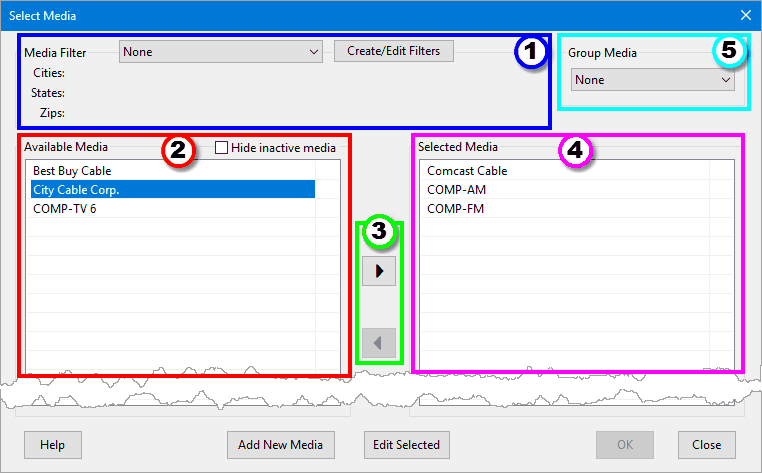
Click on any of the numbered circles in the screen image above for more information or just scroll down.
1. Media Filter
The Media Filter option on the Select Media window restricts the display of Available Media to only those matching the specified criteria. To apply a filter, select a filter from the drop-down list.

Selecting a Filter
The criteria of the selected filter is displayed as a reminder which filter is in effect. To disable a filter (and display all available media), select None from the drop-down list.
Once a filter is applied to a campaign, that filter will remain in effect for that campaign until it is changed or disabled.
Add New Filter
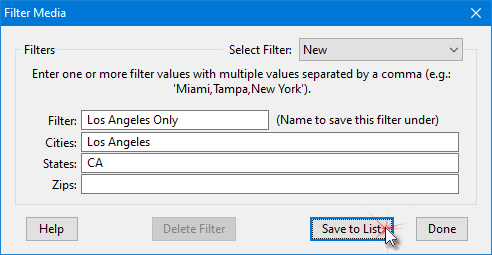
New filters can be created at any time. Clicking the Create/Edit Filters button on the Select Media window will open the Filter Media dialog.
If a filter was previously selected, the Filter Media dialog will default to that selection, making it easy to modify the filter. To create a new filter, click the Select Filter box and select "New" from the drop-down list.
Adding Media Filter
Enter a unique name for the filter and then specify the filter criteria in the Cities, States, and Zips fields. The effect of the various fields is cumulative. In the example image above, only media that have a city designation of "Los Angeles" and a state designation of "CA" will be displayed when the filter is applied. If the Cities field was left blank, then only media with the market designation of "CA" would be displayed.
Each field can have multiple entries, separated by a comma. This would allow media to be specified by multiple cities, states, or Zip codes, if desired.
Click the Save to List button to add the filter to the list of available filters. The Filter Media dialog remains open to allow a series of new filters to be entered or to edit existing filters. Click Done when finished creating/editing filters.
Editing Filters
Select any filter from the drop-down list to edit it. Once changes are complete, click Save to List to make the changes permanent.
Deleting Filters
A filter can be removed by first selecting it in the Filter Media window and then clicking Delete Filter. When deleting a filter, one of two things will occur:
•If the filter is not in use by one or more campaigns, the program will ask for confirmation of this action. Click Yes to delete the filter.
•If the filter IS in use by one or more campaigns, the program will display an alert and ask for permission to proceed. Continuing with the deletion will result in the selected filter being removed from all campaigns that were using it, setting those campaign filters to "None". Media previously assigned to existing campaigns will not be altered.
2. Available Media
This is a list of media in the database that are available to be added to the campaign. The content of this list is affected by any Media Filter applied.
Any media designated as Inactive will appear with a pink background. The visibility of inactive media can be toggled by checking the Hide inactive media box at the top of the Available Media list. Note that inactive media cannot be selected for inclusion in a campaign unless their inactive status is removed.
Media can be added or removed from a campaign at any time, even after the campaign has commenced.
To add new media not in the database, click the Add New Media button. This will open the Media Information window where a new media record can be created.
Adding Media to a Campaign
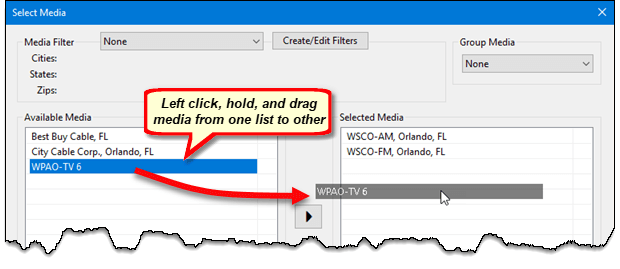
Highlight a media to be added in the Available Media list, then use any of the following methods to assign the selection(s) to the Selected Media list:
•Double click the desired media, or
•Click the right arrow button between the lists, or
•Left click and hold, then drag the selection(s) to the opposite list and release
Multiple media can be selected and assigned simultaneously by using the Shift and Control keys along with the mouse.
Adding Media to a Campaign
When a media is added to a campaign, it inherits the campaign's full start and end dates and all schedule information is blank. Schedule dates can be adjusted to fall within the full campaign dates span in the Schedule Detail window.
Removing Media from a Campaign
The process described above is reversed when removing a media from a campaign. Either double click the media in the Selected Media list or highlight it with a single left mouse click and then click the left arrow button to move the media to the Available Media list, or left click, hold, and drag to the opposite list, then release.
The media add/remove process is not complete until the OK button is clicked to make the changes permanent. Click Close to abandon all selection changes and return to the Campaign Information window.
Important: When the OK button is clicked, any media removed from the campaign will have its schedule deleted and it cannot be recovered. If the removed media is later re-added to the campaign, the media's schedule will have to be re-created. You will be asked to confirm your action when media is removed from a campaign.
Media can also be removed from the Campaign Information window individually by highlighting the media in the Media list and clicking the Delete Media button  on the tool bar. Deletions must be confirmed before the media is actually deleted.
3. Selection Buttons
Use these buttons to move a media in the Available Media list to the Selected Media list and vice-versa. Media can also be moved from one list to the other by double clicking the desired media with the mouse, or left click and hold the mouse button and drag the selected media to the opposite list, then release.
4. Selected Media
Media in the Selected Media list are included in the campaign. To remove a media from the Selected list, double click it with the mouse or left click and hold, then drag the selected media to the Available Media list and release, or left click to highlight and click the left pointing arrow button.
When a media is removed from the Selected List and OK is clicked, a warning message is displayed asking for confirmation before the removal takes place. Once a media has been removed from the campaign, the schedule associated with that media is permanently removed and cannot be restored without a current backup.
Pro Tip
Hold down the Shift or Control button on the keyboard to select and move multiple media from one list to the other.
Add New Media
To add new media to the Available List, click the Add New Media button at the bottom of the selection window. This opens the Media Information where new media can be added to the database.
5. Media Groups
In addition to Media Filters, COMPASS offers Media Groups as a convenient way to manage groups of related media. Using Media Groups provides a quick way of assigning frequently used media to new or existing campaigns.
Creating a Media Group
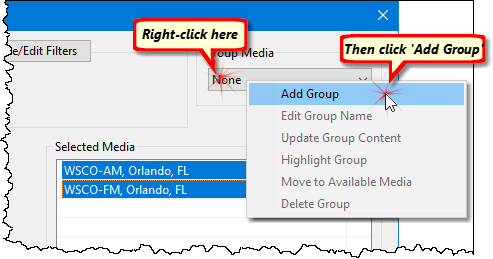
1.Highlight the desired media in the Selected Media list. Multiple media can be selected by using Shift and Control.
2.Right click the Group Media drop down list to display a pop up menu, then click Add Group.
Adding a New Media Group
3.Enter a unique name for the group and then click OK to add it.
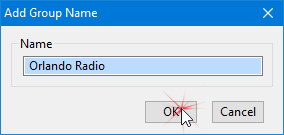
Adding Group Name
Now the group is available for selection on future campaigns. To add all media in the group to a campaign, just select the group name from the Group Media drop down.
Selection of media groups is cumulative, which means additional groups can be selected and media in those groups will be added to those already selected. Additionally, any media may be assigned to multiple groups, as desired. For example, a group list Florida Radio could also contain media in a group list Orlando FMs. When a media is assigned to more than one list, it will only be inserted in a campaign once regardless of how many different group lists are selected for the campaign.
After a group has been selected, individual members of the group can be removed from the campaign as desired without altering the group definition.
Maintaining Media Groups
Additional options are available on the Media Group right click menu (some items will be disabled depending on the current list selected):
•Edit Group Name — Changes the name of an existing group (each name must be unique).
•Update Group Content — Changes the media included in a group to those media currently highlighted. Allows existing group members to be removed and new ones added.
•Highlight Group — Highlights (selects) the members of the group currently selected in the Media Group drop down list.
•Move to Available Media — Moves the highlighted (selected) members of the group from the Selected Media list to the Available Media list. When such a move takes place, any schedules for the previously included media will be lost once OK is clicked on the Select Media window.
•Delete Group — Removes the group name from the Media Group list. Deleting a media group only eliminates the assigned name from the Media Group list. No media is removed from the campaign when this action is taken.