While working in Reconcile Explorer, the Reconciliation Note Manager provides a convenient way of editing, deleting, and cleaning up existing notes. Click the Reconciliation Note Manager  button on the tool bar to open the manager.
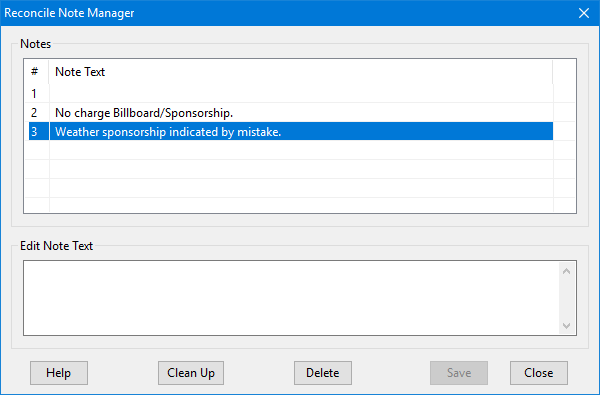
Reconciliation Note Manager
Use the left mouse button to double click an existing note to edit it. After editing is complete, click Save to store the changes. The text for that note will be updated throughout the reconciliation file currently opened on ALL records where that note appears.
To delete an existing note, left click to select it, then click Delete. All notes that have been deleted individually from all records in the Reconcile Editor will appear with a pink background and can be safely deleted without affecting any records. Notes without a pink background are currently in use. Attempting to delete such a note will cause COMPASS to ask you to verify the deletion before proceeding.
In some cases there can be one or more "empty" notes that were produced by previous versions of COMPASS. Click the Clean Up button without selecting any note to remove those blank notes. All notes subsequent to the blank line will be moved up in numerical order. In the example above, the #2 line "No charge Billboard/Sponsorship." will be advanced to line #1, while line #3 will become line #2. The numbers of all existing notes in the reconciliation file will also be updated to reflect this new order. If there are no blank lines in the Notes list, the Clean Up button will be disabled.
Any changes made in the Manager are not saved until the Save button on the Reconcile Explorer is selected. To abandon any changes made in the Manager, exit the Reconcile Explorer without clicking the Save button.