Client information in COMPASS can be extracted to a comma separated value (CSV) file via the Export Clients feature. This information can then be utilized by third-party applications, such as spreadsheets.
The COMPASS Export Wizard assists in each step of the export process. The export file generated is a quoted, comma delimited file, meaning commas can be included "inside" the fields since each field is surrounded by quotation marks (example: "King's Furniture Mart","18320 South Orange Blossom Trail", etc.)
Open the wizard by choosing Clients > Export from the main menu.
1. Select Export Template
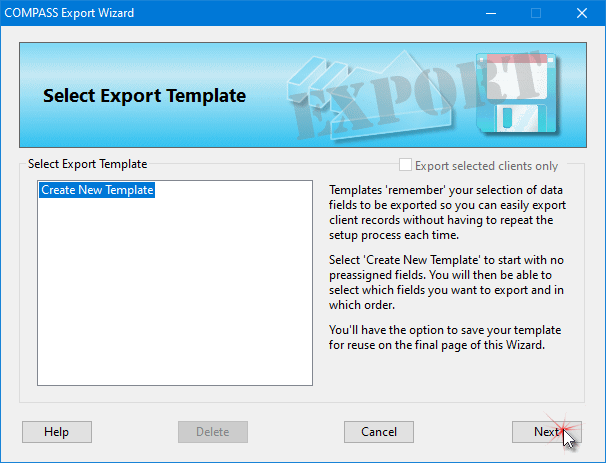
Export Wizard Step 1 -- Selecting a Template
The Export Wizard uses a template based system to store frequently used export models. Using a template avoids recreating all the export steps from scratch each time client information is transferred. On the initial use of the wizard, select Create New Template from the list, then click Next. Click Cancel at any time to abandon the export and close the wizard.
Need to selectively export clients? If one or more clients have been selected (highlighted) on the main COMPASS window, the box Export selected clients only will be enabled for selection.
 Pro Tip
If you plan to do more than one export and the information being exported is consistently formatted, creating a template can greatly speed up the export process. See Using Templates for details.
2. Select and Rename Fields to Export
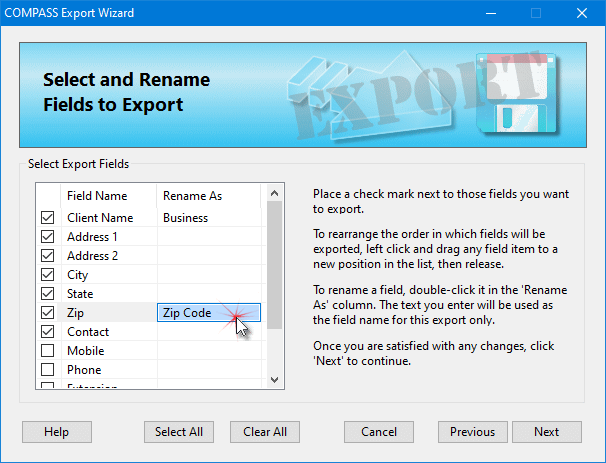
Export Wizard Step 2 -- Selecting and Renaming Fields
Place a check mark next to each item in the Field Name list that is to be included in the export. In some cases, it may be desired that a different name be used in place of the default name used by COMPASS. If this is the case, double-click the Rename As column on the line to be renamed, then key in the new name and press Enter.
In addition, the order in which the fields appear in the exported file can be altered. Using the left mouse button, click on a line in the Field Name column. Continue holding down the mouse and drag the item up or down the list until it reaches the desired position, then release the button to drop the item in that location.
Once all selections and any changes are complete, click Next.
3. Export to File
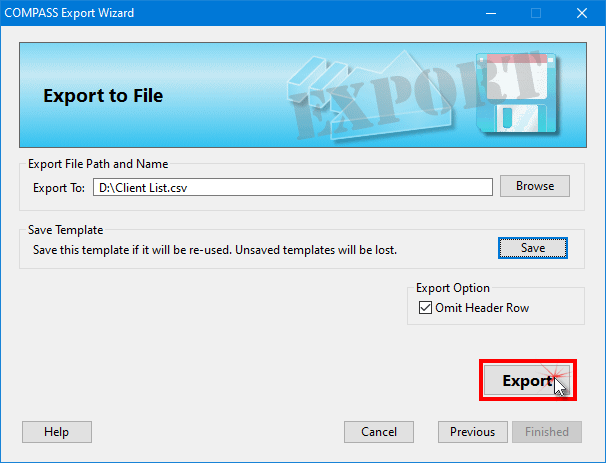
Export Wizard Step 3 -- Select Export File
The final step in the export process is to select the file name and destination where the file will be saved. Either enter a valid path and file name or click the Browse button choose the location and file name. The Export button will not become available until a valid path and file name has been entered.
If the steps taken to produce this file will be used again in the future, click Save to save them as a template. Selecting a saved template will use all the same settings as specified in step 2 of the wizard. See the topic Using Templates for more information.
A check mark in the box Omit Header Row will eliminate the field names (e.g., "Client Name", "Address1", etc.) from the export file. (Note: this will eliminate any fields renamed in Step 2.) Remove the check to have this row included.
Click Export to generate the export file. A message will be displayed once the export is complete. Click Finished to close the Export Wizard.