On the first use of COMPASS Mail, the application's Settings tab will be displayed. This is where the email server information is specified and other user options are selected.
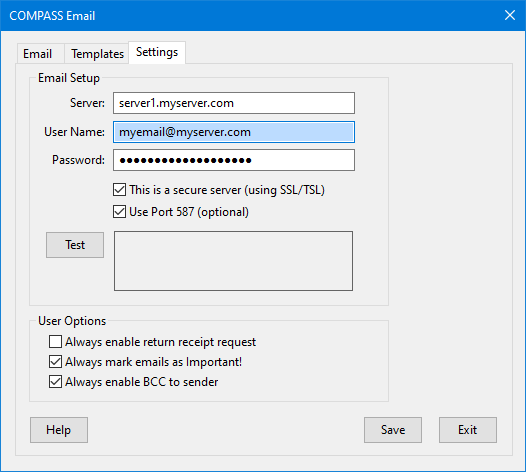
COMPASS Mail Settings
In order to send emails via COMPASS Mail, three items of information are required:
•The server name (see below)
•Your email user name (usually provided by your ISP)
•Your email password
Once these three items have been entered and saved by clicking the Save button, the Test button becomes active. Click Test to determine if your settings are correct. A status message will appear in the box next to the Test button indicating a successful test or if there are problems.
Server security has been greatly enhanced over the years since COMPASS was initially conceived. As a result, if your initial test produces an error or no response, one or both of the following settings might be required.
•This is a secure server (using SSL/TSL): Place a check mark in this box if you are operating with a "secure server", which includes most modern servers. Contact your server host for additional information.
•Use Port 587 (optional): This option becomes available when the This is a secure server (Using SSL/TSL) is checked. It might be required if checking the previous option alone does not allow a connection.
Upon testing your server connection, the results box will indicate any problems that might require the enabling (or disabling) of these additional settings.
User Options
•Always enable return receipt: Each email has the option of requesting a return receipt. Check this box to always have that option pre-checked when a new email is started.
•Always mark emails as Important!: This option can be enabled individually on each email. Check this box to have it always selected with each new email.
•Always enable BCC to sender: Because COMPASS Mail is separate from your email account, copies of emails sent through COMPASS Mail do not appear in the "Sent" folder of your email client. Check this box to have all emails from COMPASS Mail copied to the addresse(s) designated in Program Options > Traffic Options.
Where Do I Obtain Email Server Information?
All email clients (such as Outlook, Eudora, .etc) require a SMTP server host name (or IP address) before they can send email. If an email application is installed on a computer, the SMTP that it uses can be found. For example:
•Eudora: Tools/Options/Sending Mail/SMTP Server
•Outlook Express: Tools/Accounts/Mail/Properties/Servers/Outgoing mail (SMTP)
•Outlook: Tools/Options/Mail Setup/E-mail Account/View.../[Next]/Change.../Outgoing mail server (SMTP)
•Mozilla Thunderbird: Tools/Account Settings.../Outgoing Server (SMTP)/Server Name
•Netscape Mail: Window/Mail & Newsgroups/Edit/Mail & Newsgroups Account Settings.../Outgoing Server (SMTP)/Server Name
Each ISP typically provides users an email address, even though you might prefer a different address through another provider such as GMail, Hotmail, Yahoo, etc. Even though the ISP-provided email might not be used, it is still available and can be utilized by COMPASS Mail.
Your user name is typically your email address, but can be any other name allowed by your ISP. Your email password might be determined by your ISP, but usually there is provision for you to specify a password of your choice.
If you have difficulty determining any of these items, check with your ISP to obtain them.
Can COMPASS Mail Use Web-Based Email?
Web-based email services, such as GMail, Hotmail, MSMail, etc. have certain restrictions in place that make it difficult to access them directly. However, should you utilize such a service, there is still an option to use COMPASS Mail.
Because you have an ISP (Internet service provider), you should also have an ISP-provided email address, complete with server. Even if you don't normally use that email address, by entering that server, user name, and password into COMPASS Mail's Settings section, email can be sent from within COMPASS.
When sending email, enter your GMail, Hotmail, or other web-based email address in the From field, NOT the ISP-provided email used in the Settings tab. Be sure to check the box Send a BCC to <youremailaddress> in order to get a copy of the email sent to your GMail/Hotmail/etc. email account. Any responses to the email sent from COMPASS Mail will appear in the email account you've listed in the "From" field.
CAUTION: Some web-based email services (specifically GMail) have taken steps to restrict what they classify as "spam". If planning to use such services, thoroughly test to ensure email sent is actually being delivered.